If your Xbox controller drifts on your PC, there's one test that decides everything, and it takes two minutes.
Plug it into an Xbox and try it there. If it behaves on the console and misbehaves on the PC, the sticks are almost certainly fine and you'd be wasting your money sending it to me. If it drifts on both, it's the hardware.
Everything below is for the first case, which is more common than people expect.
Why PC is different
On a console, one company controls the hardware, the firmware and how games read the sticks. On a PC, your controller's input passes through Windows, possibly through Steam, and then into a game that applies its own settings — and each of those layers can introduce something that looks exactly like drift.
None of those layers exists on the console, which is why the same controller can behave differently on the two.
Windows has its own calibration
Separately from Microsoft's Xbox recalibration tool, Windows keeps its own idea of where your controller's sticks sit at rest, and it can be wrong.
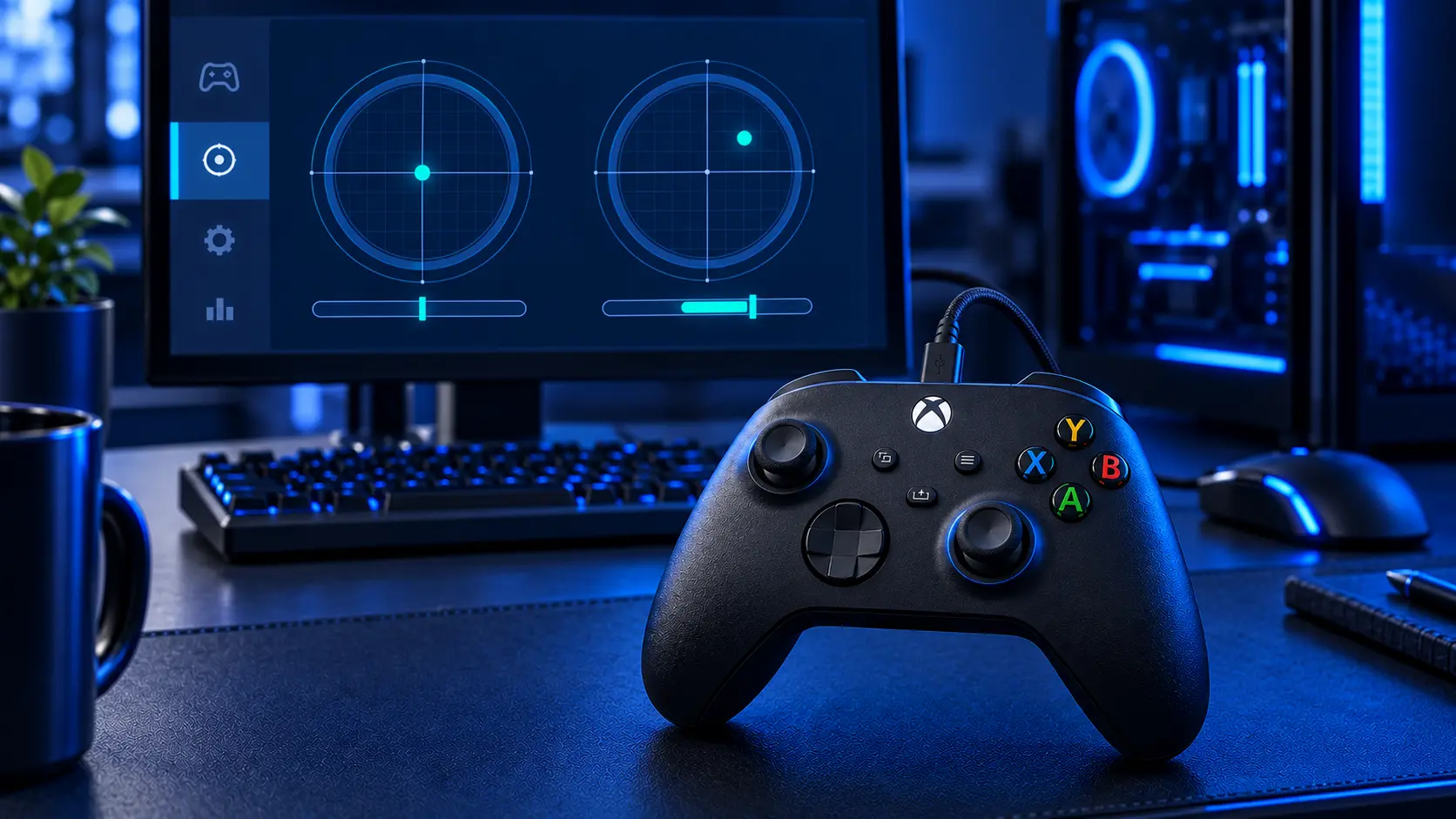
You'll find it in the classic game controller settings — press Windows+R, type joy.cpl and press Enter, then select your controller, open Properties and look for the calibration and test tabs. Newer Windows versions also expose a calibration option through the device's settings page.
The test tab is worth a look on its own. It shows the raw axis positions, so you can see whether the stick is reporting movement at rest, and how much.
If Windows has a bad calibration stored, recalibrating there fixes a fault that never existed in the controller.
Steam has its own deadzones
If you play through Steam, Steam Input sits between the controller and the game and applies its own configuration — including deadzone settings that can be set tighter than anything the game would use.
It's worth checking the controller settings in Steam, and worth testing the same game outside Steam if you can, to see whether the behaviour follows the platform or the pad.
How it's connected matters
Three ways to connect an Xbox controller to a PC, and they're not equal.
USB cable. The most reliable, and the one to test with. If the drift disappears on a cable, the problem was the connection rather than the sticks.
Xbox Wireless Adapter. Microsoft's own dongle, and generally solid.
Bluetooth. The most likely of the three to cause odd behaviour, particularly with interference from other Bluetooth devices or a crowded 2.4GHz band. If you're on Bluetooth and seeing intermittent drift, try a cable before you try anything else.
Firmware
Connect the controller by cable, open the Xbox Accessories app on Windows, and let it install any firmware update it offers.
Controller firmware fixes real connection and input problems, and it's free. It's also the step people skip because it sounds like it shouldn't matter.
Wired against wireless, same session
A quick diagnostic worth doing while everything is still set up.
Play the same game for ten minutes on Bluetooth, then plug the cable in and play the same ten minutes again.
If the drift is there wirelessly and gone on the cable, you've found it — it's the connection, not the sticks, and no repair is needed. If it's identical both ways, you've eliminated the connection entirely, which is genuinely useful to know and takes twenty minutes.
If you've got a second controller
Try it on the same PC, in the same game.
If both pads drift the same way, the problem almost certainly isn't either of them. Two controllers don't wear identically, and matching symptoms across two devices points squarely at Windows, Steam or the game rather than at hardware.
Games with no deadzone at all
Some games — particularly older ones, emulators and anything with minimal controller support — apply no deadzone whatsoever. On those, the tiny amount of electrical noise every controller produces at rest becomes visible movement.
That isn't drift. It's a game reading the stick more literally than anything else does. If one title is unplayable and everything else is fine, that's usually what's happening, and the fix is in that game's settings if it has any.
When it is actually the hardware
Run the console test at the top. If it drifts there too, the sticks are worn and none of the above will help.
The same is true if it drifts on the PC with a cable, in multiple games, outside Steam, after a Windows recalibration and a firmware update. At that point you've eliminated every layer and what's left is the controller.
What each symptom means will tell you which stick and which axis, which is useful information to send with it.
If you don't own an Xbox to test with
Plenty of PC players don't. Two substitutes.
Test on someone else's PC. If it drifts there too, the controller travels with the problem.
Use the joy.cpl test tab with everything closed. No game running, no Steam, controller flat on the desk. If the axis readings sit still there, the hardware is fine and something further up the chain is responsible.
What a repair costs, if it comes to that
£19 for one stick, £24 for both, including parts, tracked return postage and a 12-month warranty. If you'd rather deal with the cause, Hall effect at £34 or TMR at £39 on a Series X|S pad replaces the sticks with contactless ones that have no contact track to wear down.
Worth saying: if your controller is a Series X|S pad, run Microsoft's own recalibration tool first, because it's free and it covers exactly this sort of fault. The calibration guide walks through it.
Test it on a console before you spend anything. If it's fine there, the answer is somewhere in Windows, and it won't cost you a penny.
The Repair Works is an independent UK repair service, run by me, Paul — 25 years of hands-on repair experience, working by post for customers across the whole country. Not affiliated with or endorsed by Microsoft.