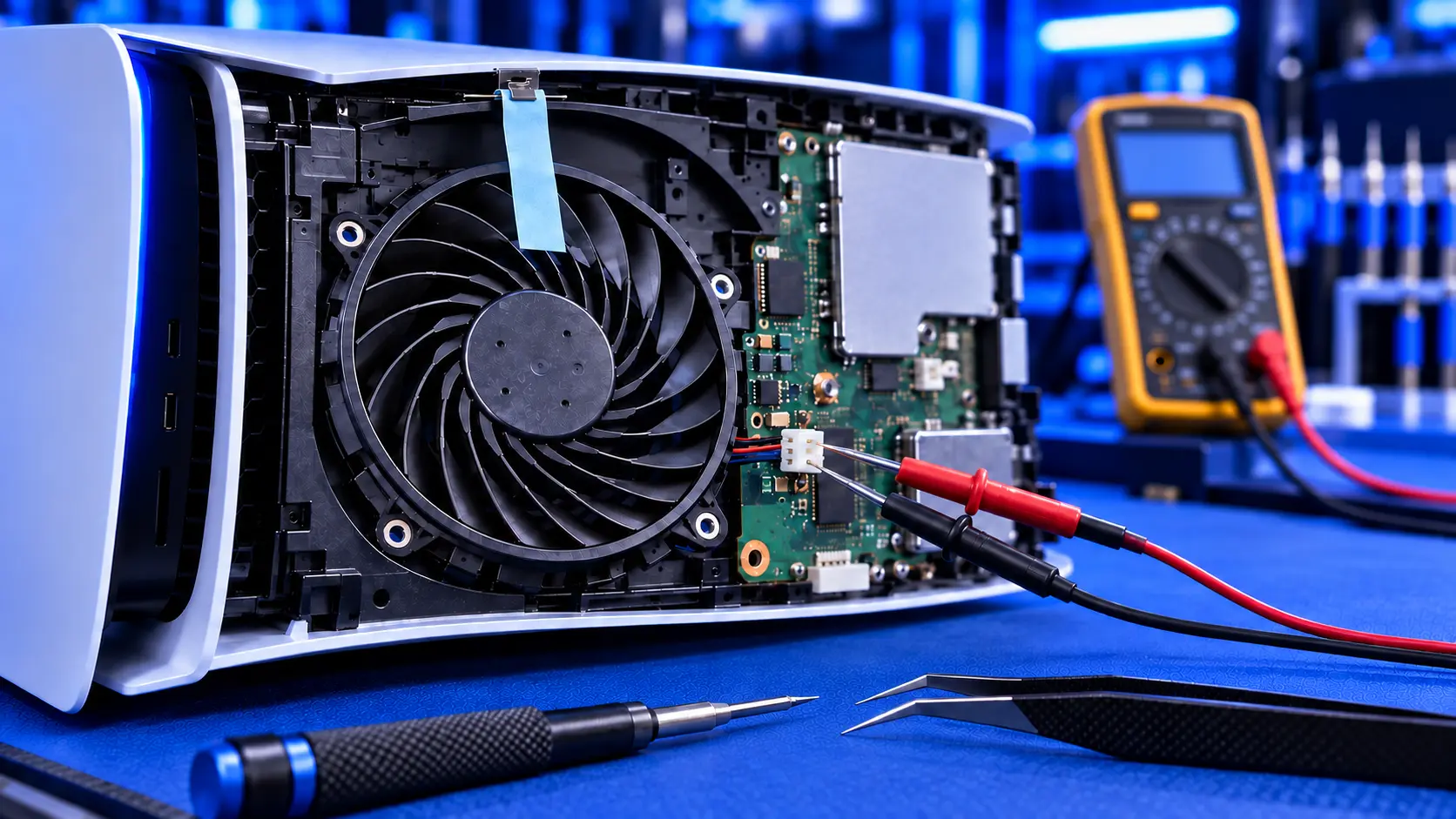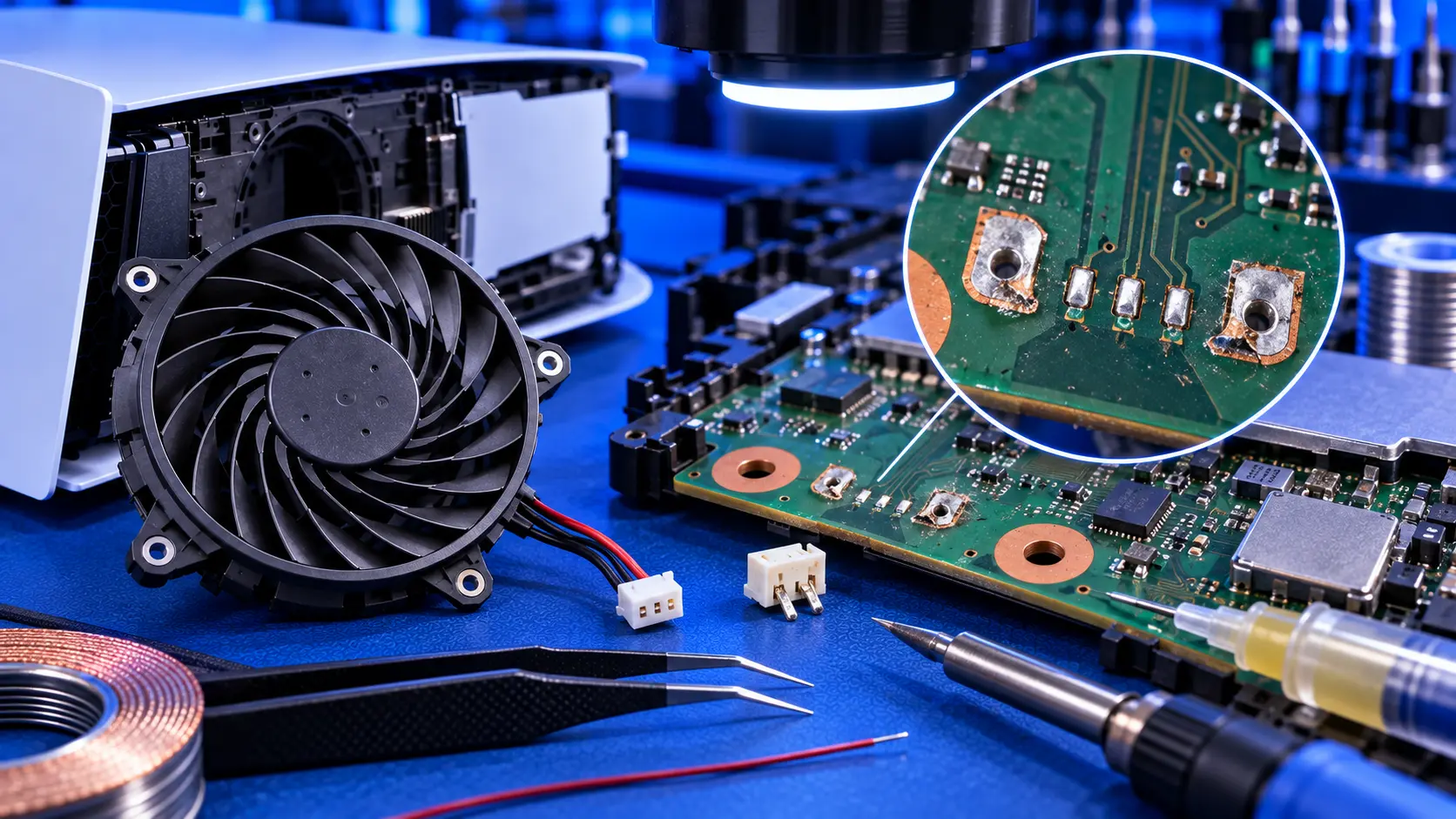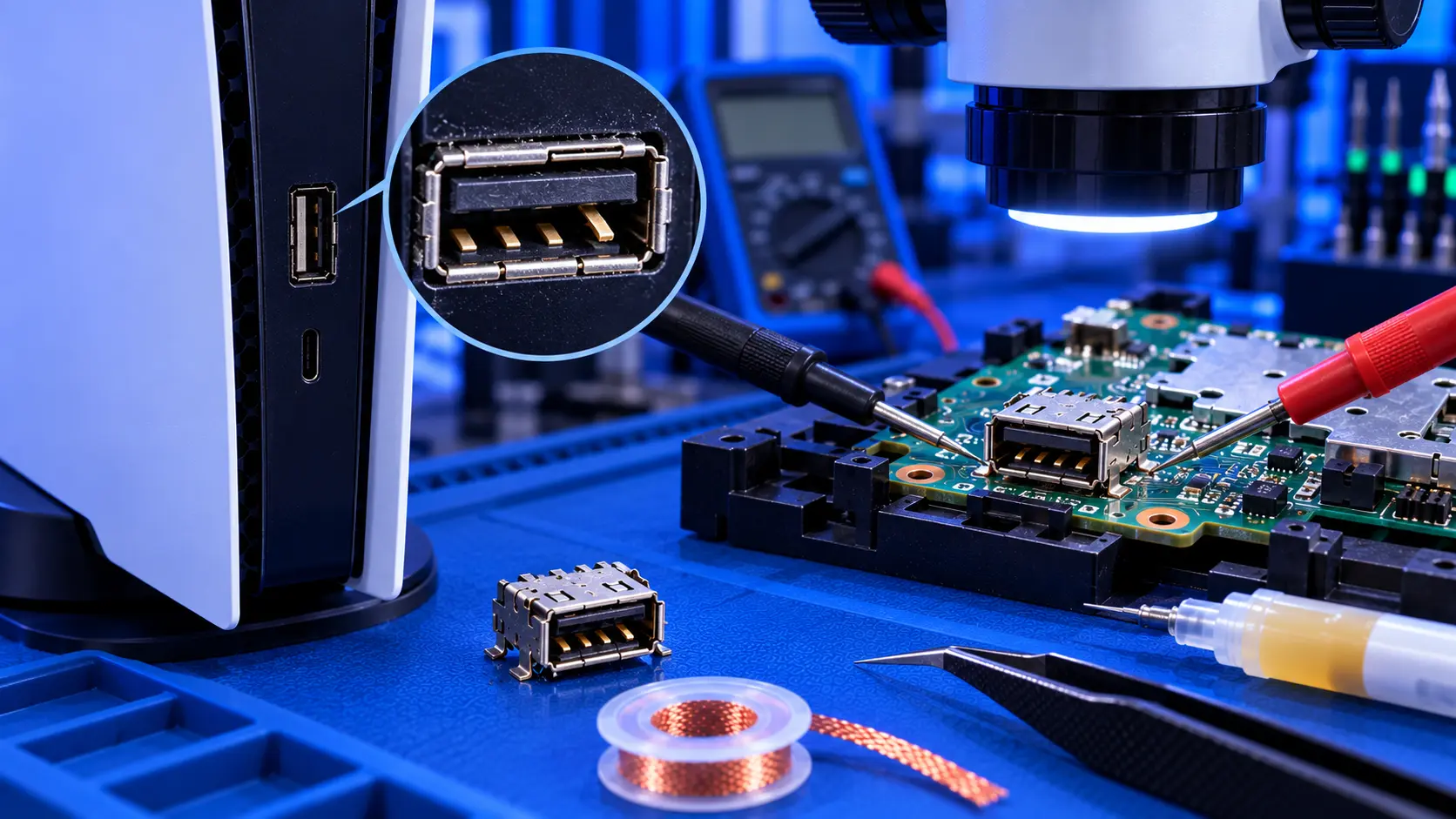
A PS5 USB port that stops working is annoying, especially when it's the one you charge your controller from. But plenty of "broken" ports aren't broken at all. The most common cause is a setting, and the second most common is the cable.
Here's what to check, in order, and how to tell when a port really is damaged.
Which ports your PS5 has
- Original PS5: at the front, one USB-A and one USB-C. At the back, two USB-A.
- PS5 Slim and PS5 Pro: at the front, two USB-C. At the back, two USB-A.
Not every port is the same speed, which matters for storage. Sony's guidance is to connect USB extended storage to a SuperSpeed port.
1. Check the rest mode USB setting
If your controller won't charge while the console is in rest mode, check this first. The PS5 has a setting that controls whether its USB ports supply power in rest mode. Go to Settings, then System, then Power Saving, then Features Available in Rest Mode, then Supply Power to USB Ports. If it's off, the ports won't charge anything in rest mode. Set it to 3 Hours or Always.
2. Try a different cable
Many USB cables, especially cheap ones, are charge-only or simply worn out inside. Try the cable that came with your controller, or another good-quality cable you know works. If the controller charges with one cable and not another, it's the cable.
3. Try a different port and a different device
- If one port fails and the others work with the same cable and device, the port is the likely problem.
- If the device fails in every port, the device or cable is the likely problem. For a controller that won't charge anywhere, see PS5 controller not charging.
4. Look inside the port
Shine a torch into the port. Lint, dust and debris can build up, especially in ports that face the room. If you see debris, turn the console off and remove it very gently with a wooden toothpick. Don't use anything metal.
While you're looking, check the small tongue in the middle of a USB-C port. It should be straight and centred. A bent or snapped tongue means the port is damaged.
5. Restart properly
Turn the console fully off rather than into rest mode, unplug it for a minute, and try again. If devices aren't recognised in any port, rebuilding the database in Safe Mode can help. I explain how in PS5 won't turn on.
Signs the port is damaged
- The connector is loose or moves when you plug something in
- It only works when the cable is held at an angle
- The USB-C tongue is bent or snapped
- One port fails with a cable and device that work in the other ports
- The port was damaged by a fall or a yanked cable, for example a controller cable tripped over while plugged in
What the repair involves
A PS5 USB port repair with me is £69 for one port, front or rear, including parts and tracked return postage, for the original PS5, the Slim or the Pro. The front ports sit on a small separate board inside the console, so I replace that board. The rear ports are soldered to the main board, so I solder in a new port. I test the port for charging and data, then test the console for an hour running a demanding game before it's posted back. The work is covered by a 12-month warranty.
If more than one port is damaged, I'll quote for the others first. For how prices compare, see PS5 USB port repair cost.
My recommendation
Check the rest mode USB setting first. It's the most common reason a controller won't charge from the console. Then try a good cable, another port and another device. If one port still fails where the others work, or it's loose or bent, the port is damaged, and it's a straightforward repair. When you're ready, how to pack a PS5 for posting will help it arrive safely.
The Repair Works is an independent UK repair service, run by me, Paul — 25 years of hands-on repair experience, working by post for customers across the whole country. Not affiliated with or endorsed by Sony.