If your Switch won't show on the TV, unplug everything and reconnect it in order: the dock's power first, then HDMI, then the console. Try another HDMI cable and TV port, and check the TV is on the right input. If handheld charging works but the TV still stays blank, the fault is usually the dock, the console's USB-C port, or the video chip that feeds the dock.
First: which Switch do you have?
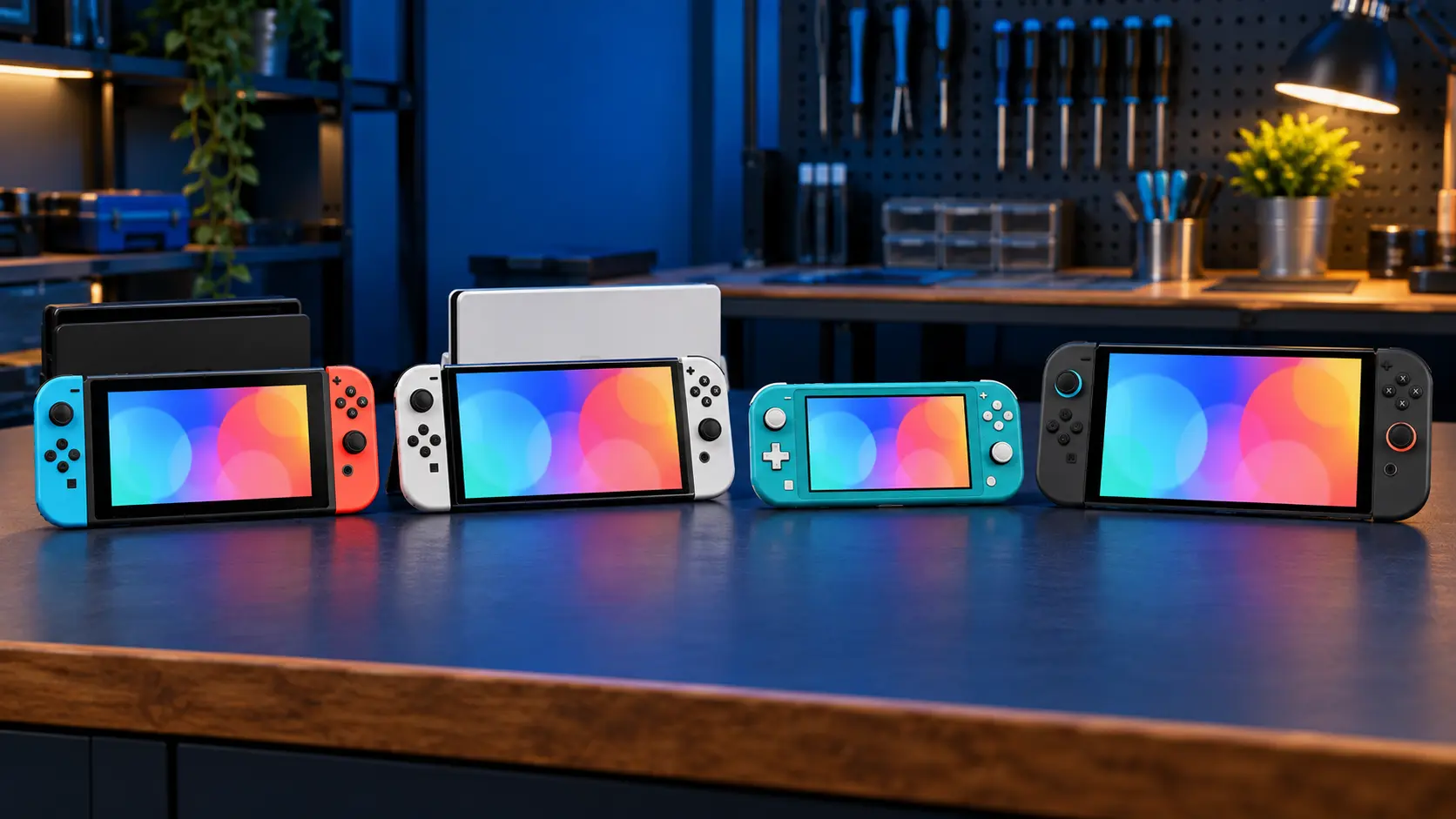
The Switch Lite has no TV output at all. It can't be docked to a TV, whichever dock or cable you use. If you have a Lite, this isn't a fault. The original Switch and the OLED both support TV play through the dock.
1. Reconnect in the right order
The dock can get confused if things are connected in the wrong order or power is interrupted. Unplug everything, then:
- Plug the dock's power adapter into the wall and the dock.
- Connect the HDMI cable from the dock to the TV.
- Switch the TV on and select the right HDMI input.
- Put the console in the dock.
Use the official Nintendo AC adapter for the dock. The dock needs more power than a phone charger supplies, and with a weaker adapter it may charge the console but not output video.
2. Swap the HDMI cable and port
HDMI cables do fail, and TV ports can too. Try a different HDMI cable, and a different HDMI port on the TV. If you have another TV or monitor, try that. It's a quick way to take the TV side out of the picture.
3. Check the TV input
It sounds obvious, but a lot of TVs don't switch inputs automatically. Cycle through the inputs using the TV remote. Some TVs also need HDMI-CEC or a "PC" or "game" mode enabled before they'll show certain signals.
4. Check the Switch's TV output settings
If you can see the console's screen in handheld, go to System Settings, then TV Output. Try setting the TV resolution to a lower setting such as 720p, then dock it again. Some older TVs and some capture devices don't handle the higher setting well. You can put it back to Automatic afterwards.
5. Official dock or third-party dock?
If you're using a third-party dock, try an official one if you can borrow it. Some third-party docks aren't reliable at video output, and some have been linked to damage inside the console. I've written about that in third-party dock problems.
If you only have an official dock, check the dock's own connector for bent pins or dirt, and look inside the console's USB-C port with a torch for lint. Lint stops the plug seating fully, which can mean it charges but doesn't pass video.
Handheld charging works, but the TV doesn't
This is a useful clue. If the console charges fine when you plug the charger straight into it, but still shows nothing on the TV with a known-good dock, cable and TV, the fault is narrower. There are three likely places:
The dock
If a different dock works, the problem is your dock, not the console. That's the cheapest outcome.
The console's USB-C port
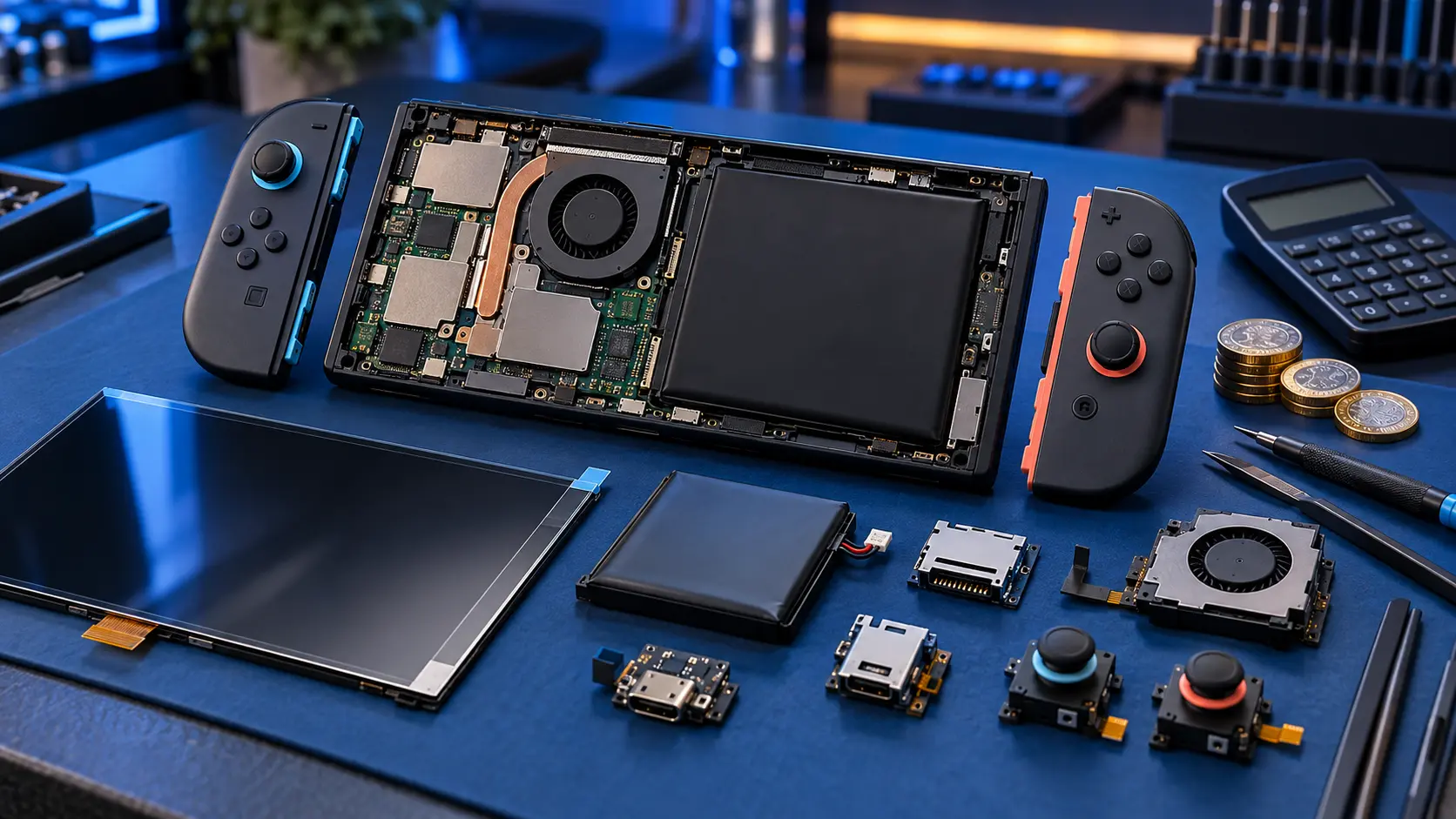
Video and power both go through the same port. A worn or damaged port can still pass enough to charge but fail on video. If the plug feels loose or the picture drops when the console moves in the dock, the port is a likely suspect. My Switch charging port repair is £65 on the original Switch and OLED.
The PI3USB video chip
The PI3USB routes video from the console to the dock. When a Switch charges normally but shows nothing on the TV, this chip is one of the most likely causes. It's a board-level repair, so it goes through my board fault assessment: £4.99 for the assessment, repairs from £89. I test it, find the fault and send you a quote before doing any work. The £4.99 comes off the repair if you go ahead, and isn't refunded if you decline or it can't be repaired.
If it doesn't charge either
If the console won't charge in handheld as well, start with the checks in my Switch not charging guide instead. That points more towards the port or the power chips than the video side.
Sending it in
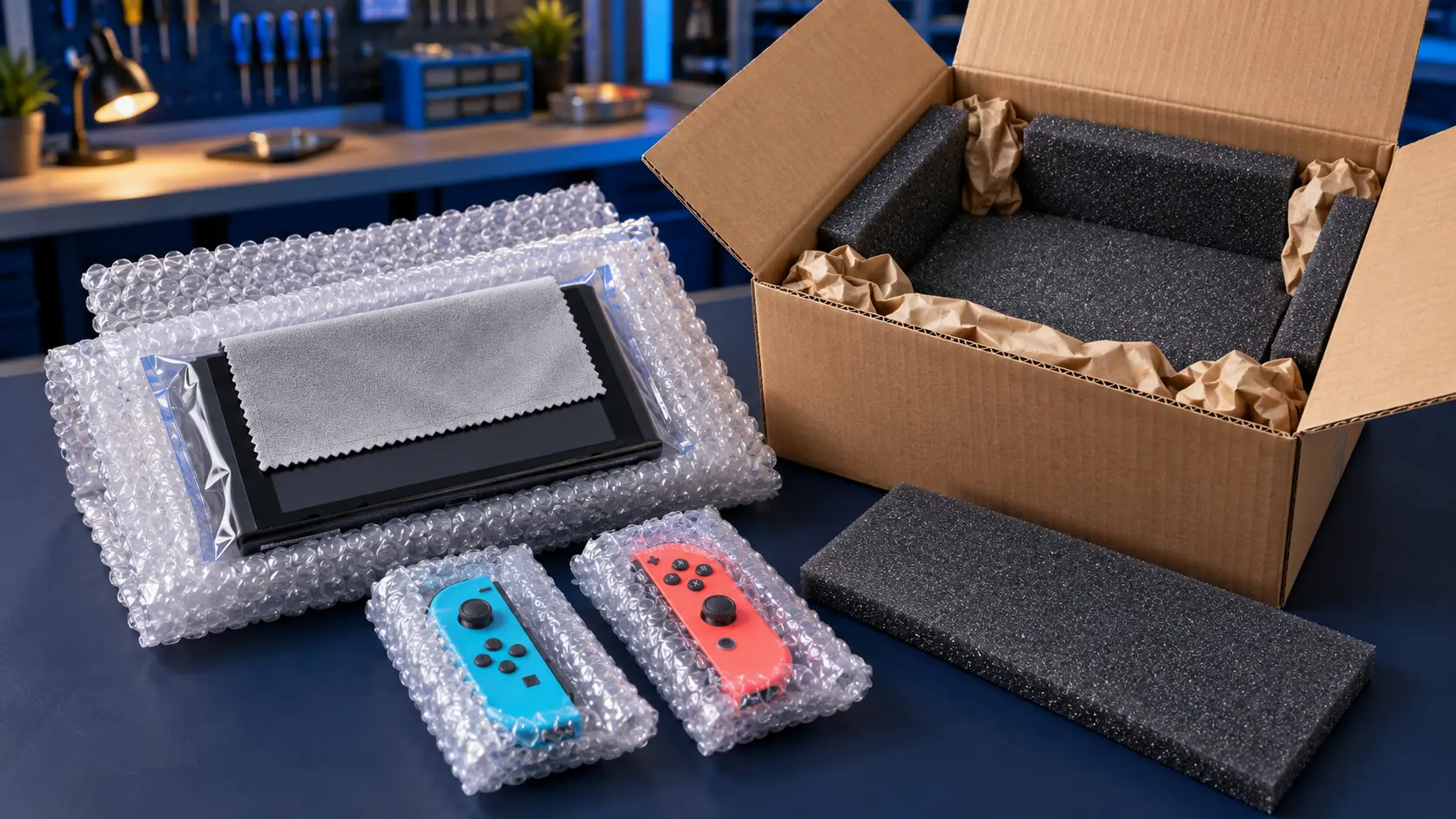
If you do need to post it, you don't need to send the dock unless I ask for it. Just the console. Remove the game card and microSD card, and back up your save data where you can. You pay to post it to me, and the insured, tracked return is included.
Every repair has a 12-month warranty, and it's no fix, no fee. For everything else, see my Nintendo Switch repairs page, or get in touch if you're not sure which repair to book.
Frequently asked questions
Can a Switch Lite connect to a TV?
No. The Switch Lite has no TV output, so it can't show on a TV through a dock or cable. Only the original Switch and the OLED support TV play.
Why does my Switch charge in the dock but show nothing on the TV?
Start with the power-up order, the HDMI cable and the TV input. If those check out with an official dock, the fault is usually the dock itself, a worn USB-C port, or the chip that routes video to the dock.
Do I need to send my dock with the console?
Usually not. Send just the console unless I've asked for the dock as well. It keeps the parcel smaller and cheaper to post.