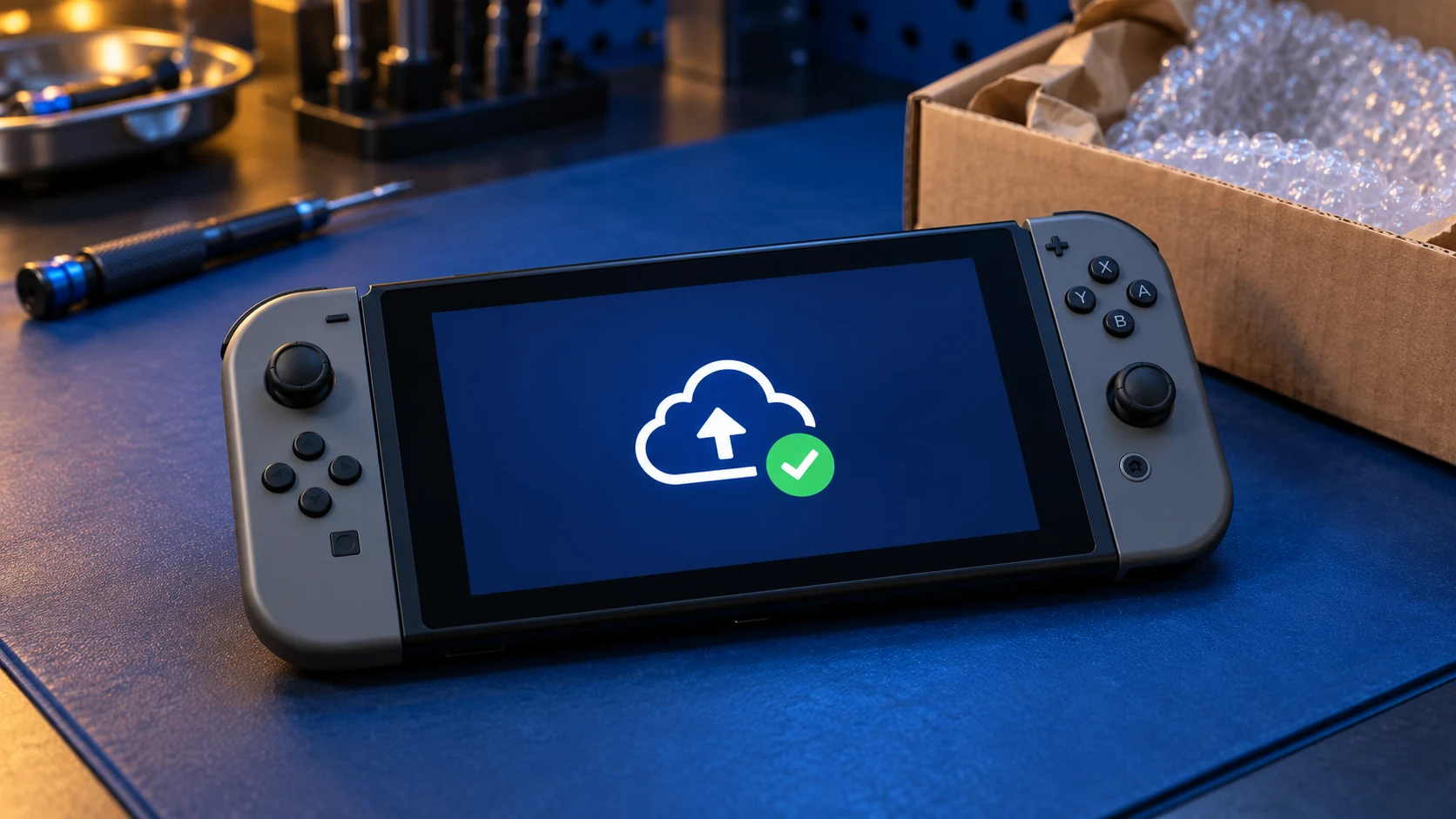
The simplest way to back up your Switch saves is Save Data Cloud, which needs a Nintendo Switch Online membership and doesn't work with every game. If you don't have a membership, or a game isn't supported, Nintendo's "Transfer Your Save Data" option can move saves to another console. Screenshots and videos can be copied to a microSD card from the Data Management menu.
Your saves live on the console's internal storage, not on the game card, so it's worth doing this before any repair, whoever does it.
Why back up if the repair doesn't touch storage?
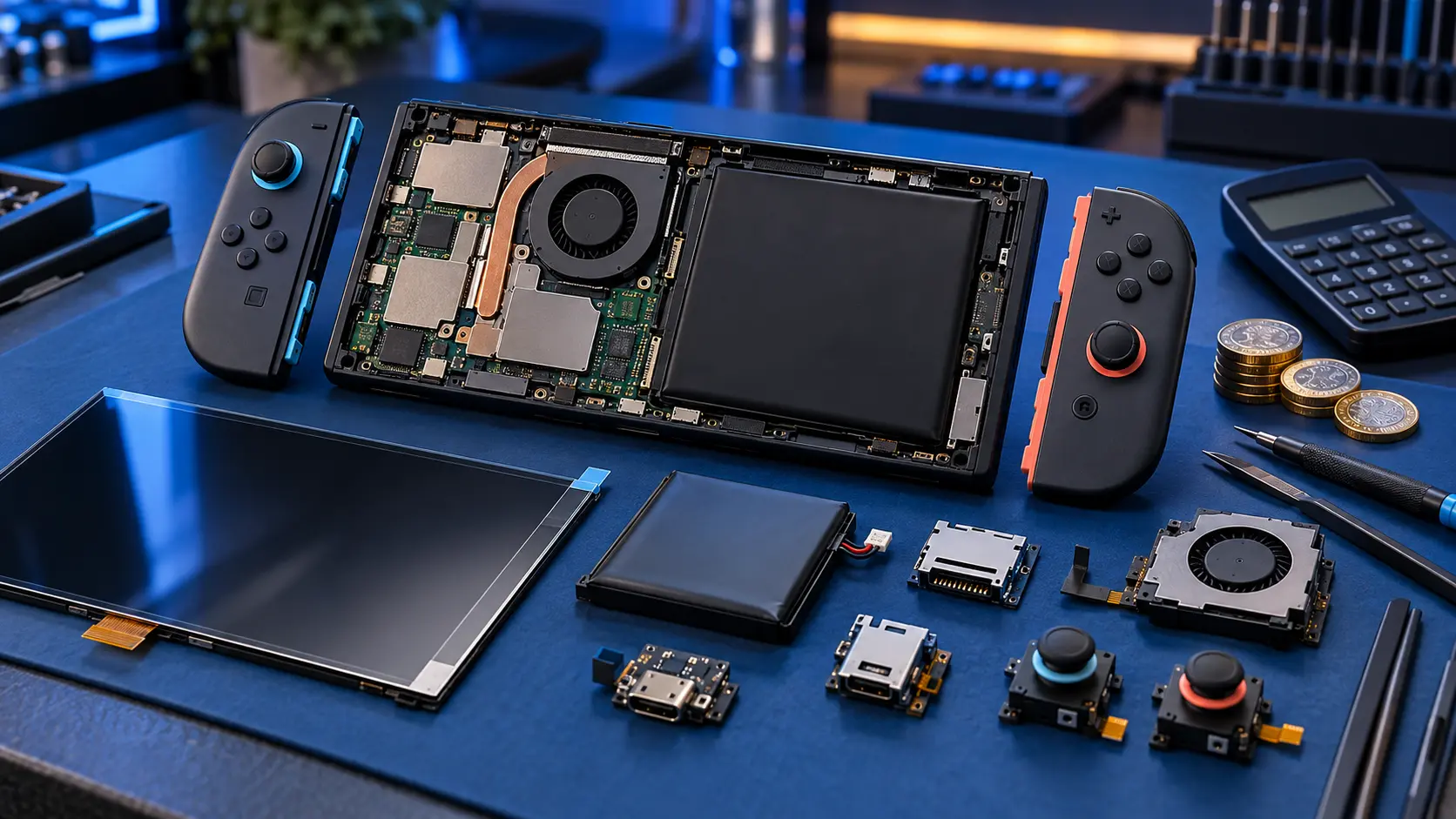
For most component repairs, such as a screen, battery, fan, charging port or game card reader, the internal storage isn't touched and your saves should still be there when the console comes back. But any repair carries a small risk, and a console that won't turn on may need board work where the outcome is less certain. If Nintendo repairs it instead, their price list says the maximum price applies when the unit is swapped for a replacement or re-manufactured product, and a swapped console comes back without your saves. I've compared the two routes in Nintendo repair vs an independent repairer.
Ten minutes of backing up is cheap insurance either way.
Option 1: Save Data Cloud (Nintendo Switch Online)
If you have a Nintendo Switch Online membership, this is the easiest option. According to Nintendo, automatic backups switch on for compatible games when you join, but it's worth doing a manual backup just before you post the console.
How to back up from the game's menu
- On the HOME Menu, highlight the game.
- Press the + or − Button.
- Select Save Data Cloud.
- Choose the user, then choose the option to back up.
How to back up from System Settings
- Open System Settings from the HOME Menu.
- Scroll to Data Management and select Save Data Cloud.
- Choose the user, select the game, and choose the option to back up.
The limits
- You need an active Nintendo Switch Online membership.
- Some games don't support it. Nintendo shows the message "This software doesn't support Save Data Cloud backup" for those.
- Saves are tied to each user, so back up every user profile on the console, not just yours.
To check whether a game is supported, look at its Software Details in the Nintendo eShop, or just try the steps above. The console will tell you if it can't back that game up.
Option 2: Transfer your save data to another console
If you've got access to a second Switch (a family member's, say), Nintendo has a "Transfer Your Save Data" option. It doesn't need a Nintendo Switch Online membership, and it's useful for games that don't support Save Data Cloud.
What you need
- Both consoles connected to the internet and near each other.
- The same Nintendo Account linked to a user on both consoles.
- Both consoles on the latest system update.
The steps
- On your console, go to System Settings, then Data Management, then Transfer Your Save Data, and choose Send Save Data to Another Console.
- Select the user and the saves you want to send.
- On the other console, go to the same menu and choose Receive Save Data.
Read this before you use it
This is a move, not a copy. Nintendo says the save is deleted from the console that sends it. If the receiving console already has a save for that game, it can be overwritten. Once your Switch comes back from repair, you can send the saves back the same way. Nintendo also says compatible saves can move between a Switch and a Switch 2.
Option 3: Copy screenshots and videos to microSD
Screenshots and captured videos stored in system memory can be copied to a microSD card:
- Open System Settings from the HOME Menu.
- Go to Data Management, then Manage Screenshots and Videos.
- Select System Memory and choose the option to copy everything to the microSD card.
Nintendo also describes copying them to a computer over USB. Once they're copied, take the microSD card out before you post the console. It doesn't need to come with it.
One thing to be clear about: the microSD card holds downloaded games, screenshots and videos, but Nintendo doesn't let you move save data onto it. Copying your card is not a save backup.
What if you can't back up?
If the console won't turn on, you can't back anything up, and that's fine. Many faults, such as a dead battery or a charging problem, don't affect the storage at all. Just tell me when you book, and read what to check when a Switch won't turn on first.
Before you post it
- Back up every user's saves where you can.
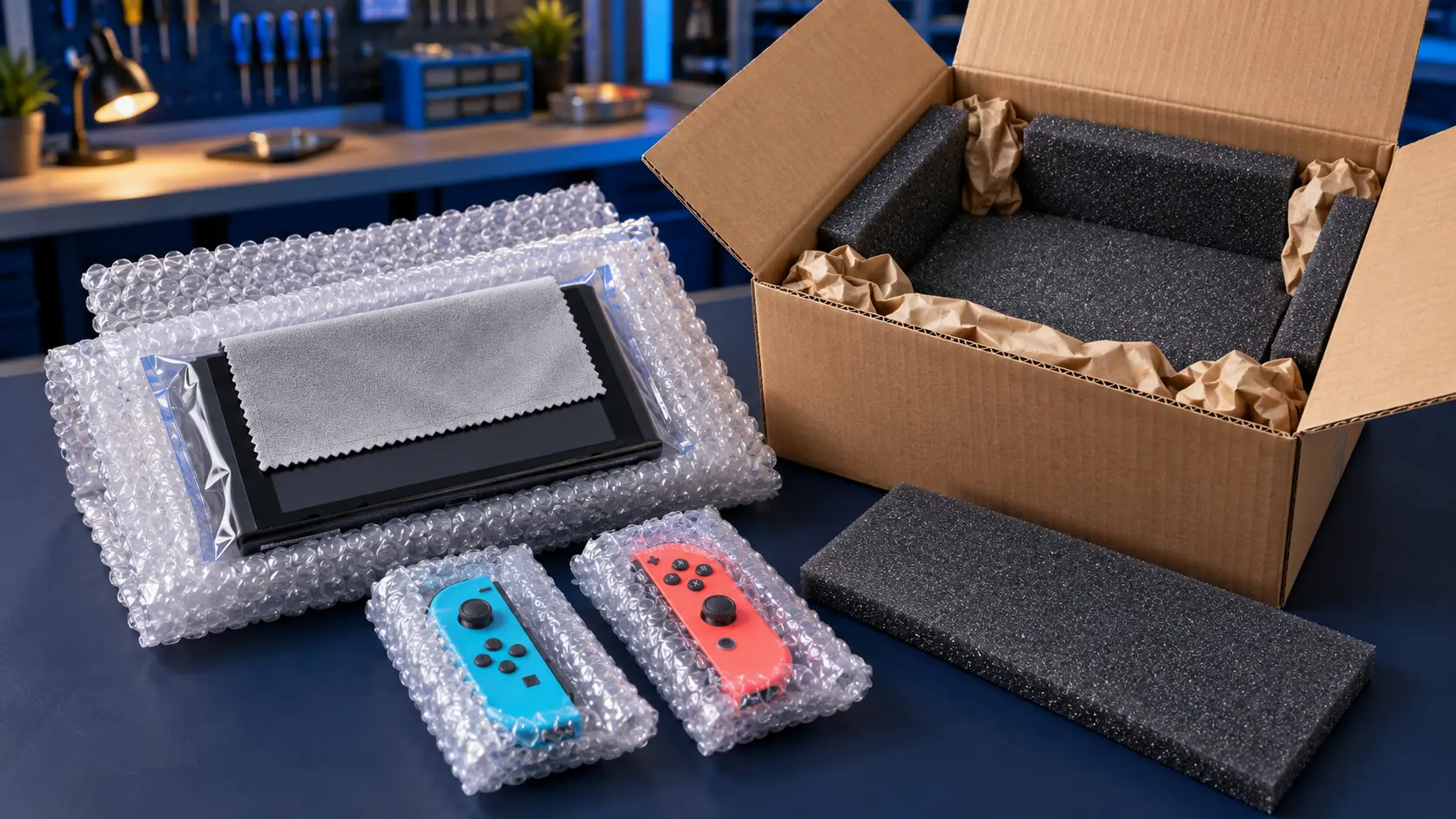
- Remove the game card and the microSD card.
- Don't send the dock or Joy-Cons unless the repair needs them.
My guide to packing a Switch for posting covers the rest. You can see every service on the Nintendo Switch repairs page. Every repair is no fix, no fee, with a 12-month warranty.
Frequently asked questions
Are my saves stored on the game card?
No. Save data is stored on the console's internal storage, not on the game card or the microSD card, which is why a backup is worth doing before any repair.
Do I need Nintendo Switch Online to back up my saves?
For Save Data Cloud, yes. Nintendo's console-to-console save transfer doesn't need a membership, but you need a second console linked to the same Nintendo Account.
Will a screen or battery repair wipe my saves?
It shouldn't. Those repairs don't touch the internal storage, so your saves should still be there, but backing up first is the sensible precaution with any repair.