Error 1 is one of the most common faults on Roborock robot vacuums, and one of the most frustrating. The robot starts, spins on the spot or wanders aimlessly, then stops with a laser sensor error. Depending on the model, you'll hear "Error 1" announced, or see a message about the laser distance sensor or lidar in the app.
The good news is that the cause is usually simple, and often cheap to fix. Here's what's going on, and what to try.
What the lidar does
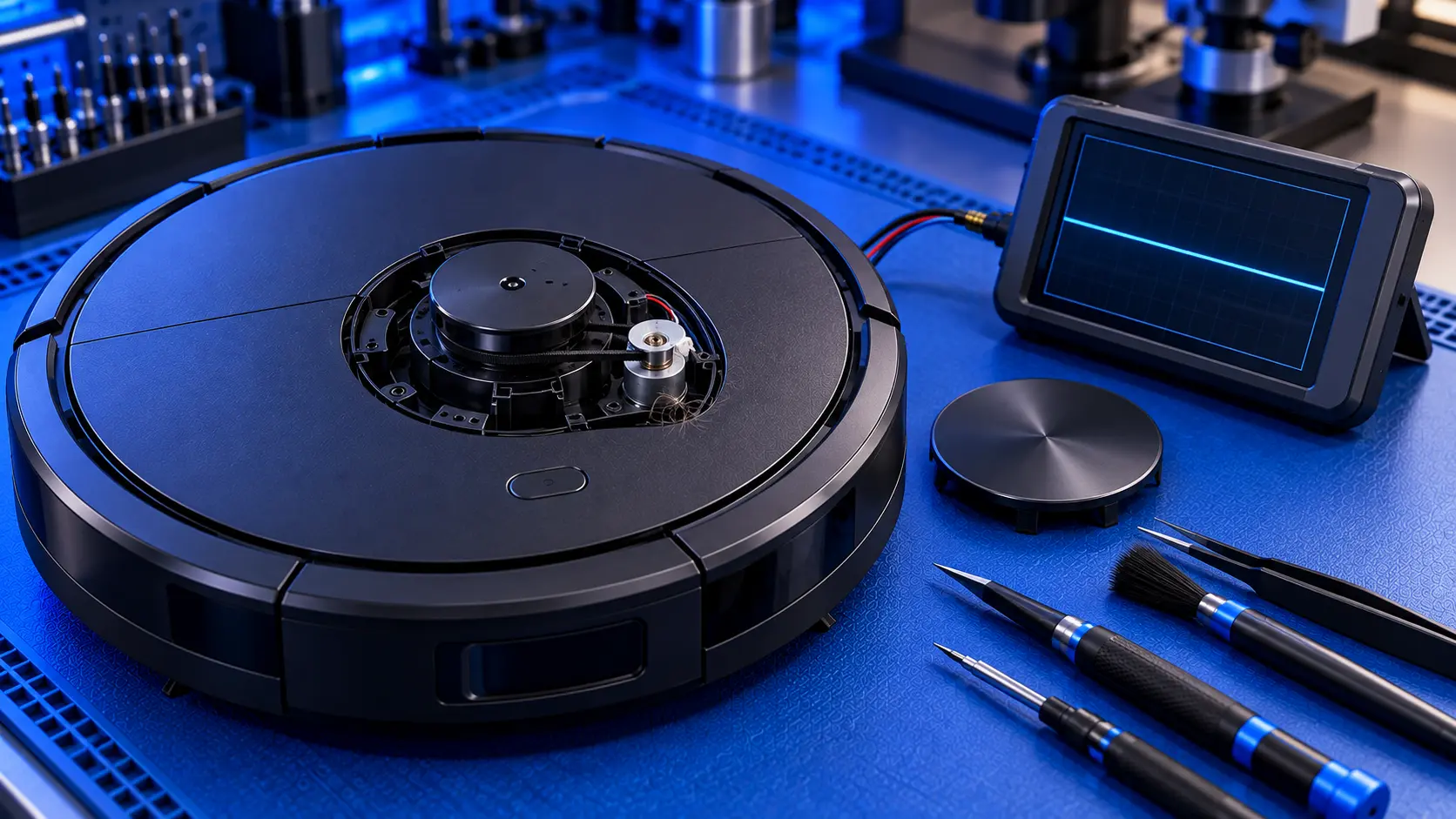
The round turret on top of most Roborock robots is a lidar, sometimes called the laser distance sensor or LDS. Inside it, a small laser spins round several times a second, measuring the distance to everything around the robot. That's how the robot builds its map, knows where it is, and finds its way back to the dock.
When the robot starts, it checks that the turret is spinning and sending back sensible readings. If it isn't, the robot can't navigate, so it stops and reports Error 1.
Which models get it
Error 1 applies to Roborock models with the lidar turret on top. That includes the S5 and S5 Max, the S6, S6 Pure and S6 MaxV, the S7 family, the S8 family, the Q5 and Q7 families, and the Q Revo range. The fault and the fixes below are much the same across all of them.
Free checks to try first
Roborock's own advice is to switch the robot on and watch whether the laser unit spins. If it doesn't, gently turn it by hand, then restart the robot. Here's a fuller version of that, in order.
1. Watch the turret at start-up
Switch the robot on and look at the turret, or listen closely. You should hear a faint whirr and see or feel it spinning. If it doesn't move at all, or starts and stops, that tells you a lot.
2. Check for anything blocking it
Hair, fluff, a sock or a toy can wedge against the turret and stop it turning. So can anything sitting on top of the robot. Check all the way round the turret and clear anything you find. If the robot has been under low furniture, look for scuffs or damage on the turret cover.
3. Turn it gently by hand
With the robot switched off, turn the turret gently with a finger. It should turn smoothly and freely. Then switch on again and see if it spins by itself. If this clears the error, it may come back, which I cover below.
4. Check the turret cover moves freely
On many models, the top of the turret is also a bumper that detects when the robot drives under something too low. If the cover is stuck down, the robot can report an error. Press it gently and check it springs back up.
5. Clean the window
Wipe the dark window around the turret gently with a dry, soft cloth. Dust or a smear won't usually cause Error 1 on its own, but it can cause navigation problems.
6. Restart and update
Turn the robot fully off, then on again. Make sure the app and the robot's firmware are up to date.
When the checks don't fix it
If the turret doesn't spin at all, or spins slowly, unevenly or only after a nudge, the usual cause is inside the turret. There are three likely culprits:
- The lidar motor. A tiny motor drives the turret. Like any small motor, it wears with use, and a worn motor often starts to need a nudge before it gives up entirely. This is the most common cause.
- The drive belt. On many models, the motor turns the turret through a small rubber belt. Belts stretch, slip or break with age.
- The turret's bearing or a damaged cover. A knock can bend the cover so that it rubs, or damage the bearing the turret spins on.
Less often, the fault is the laser module itself, or the connection between the turret and the robot's main board.
Is it worth repairing?
Usually, yes. The lidar motor and belt are small, inexpensive parts, and on most Roborock models they can be replaced without replacing the whole lidar unit. Compared with the price of a new robot, a lidar repair is one of the better-value repairs you can have done.
It's worth doing properly, though. Getting to the turret usually means taking the robot's top covers off, and the replacement motor needs to be the right one for your model. A motor that turns at the wrong speed can cause the same error, or poor mapping.
A robot that's spinning in circles isn't always a lidar fault. If the turret spins normally but the robot still won't drive straight, see Roborock wheel error or going in circles.
Common questions
Can I still use my Roborock with Error 1?
Not really. Without the lidar, the robot can't work out where it is, so it won't clean properly or find its dock. It's best not to keep restarting it, as that can make a failing motor worse.
Will I lose my maps if the lidar is repaired?
A lidar repair doesn't usually erase your maps, as they're stored on the robot and in the app. After any repair it's worth checking the robot still recognises its map, and re-mapping if it doesn't.
Is Error 1 covered by the warranty?
If your robot is still in its warranty period, contact Roborock first. Opening the robot yourself, or having it repaired elsewhere, is likely to affect the warranty. Is it worth repairing a robot vacuum? covers what to do once the warranty has run out.
Still showing Error 1?
If you've worked through the checks and the turret still won't spin properly, get in touch with your model and what it's doing. I'll tell you honestly whether it's worth repairing.
The Repair Works is an independent UK repair service, run by me, Paul — 25 years of hands-on repair experience, working by post for customers across the whole country. Not affiliated with or endorsed by Roborock.