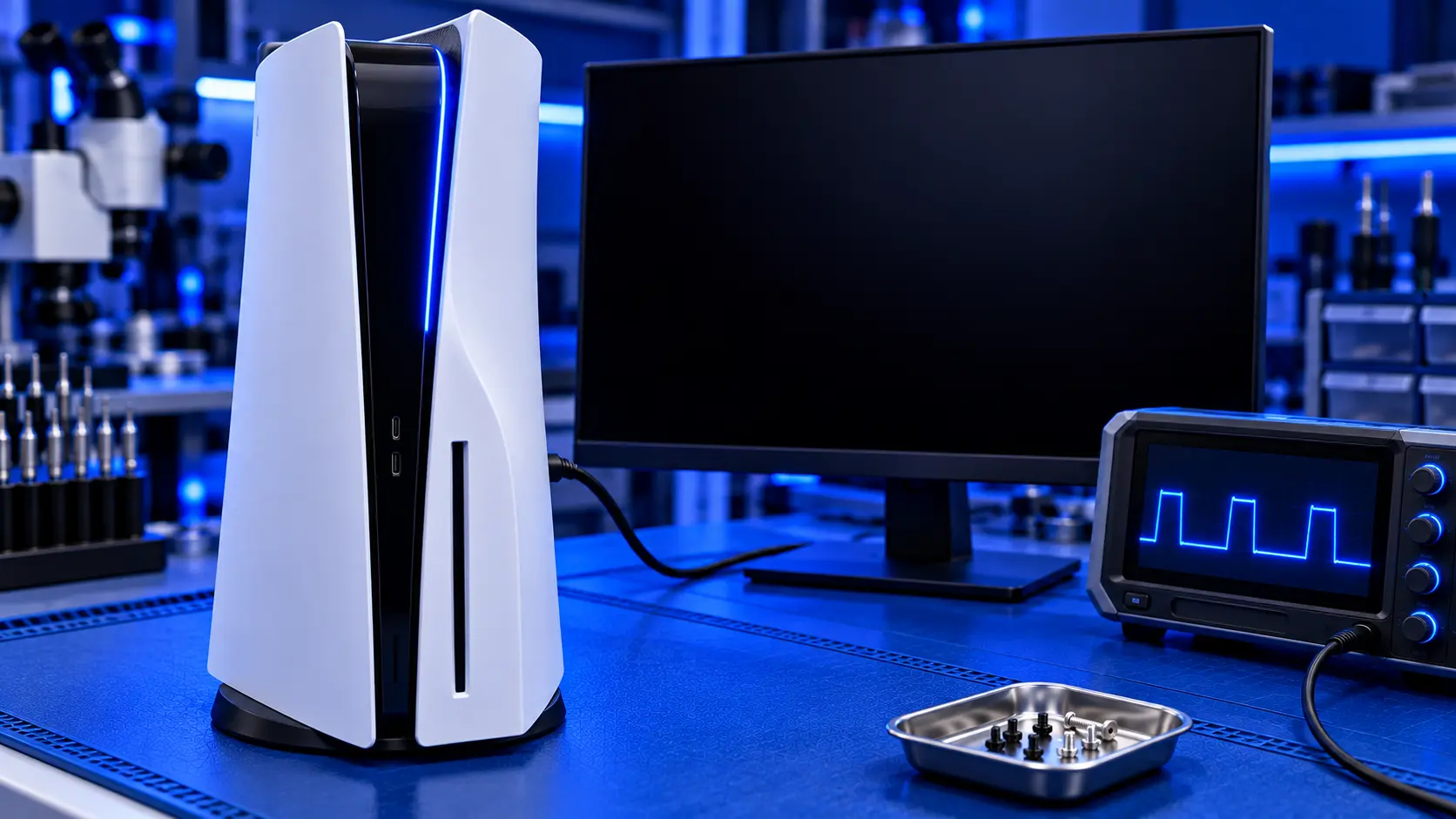
When a PS5 starts up, the light pulses blue for a moment, then turns white once the console has started. The "blue light of death" is when it never gets that far: the light keeps pulsing blue, and then the console switches off, or stays pulsing with nothing on screen.
It sounds dramatic, but it's very often a software problem, and one you can usually fix at home. Here's what's going on, how to fix it safely, and how to tell when it's a hardware fault.
What the blue light means
A pulsing blue light means the console has power and is trying to start, but hasn't finished. Something is stopping the system software from loading properly.
The most common trigger is a hard shutdown: a power cut, the plug being pulled, or a crash, especially during a system update. If the console loses power while it's writing files, the system software can be left damaged, and the console can't start from it.
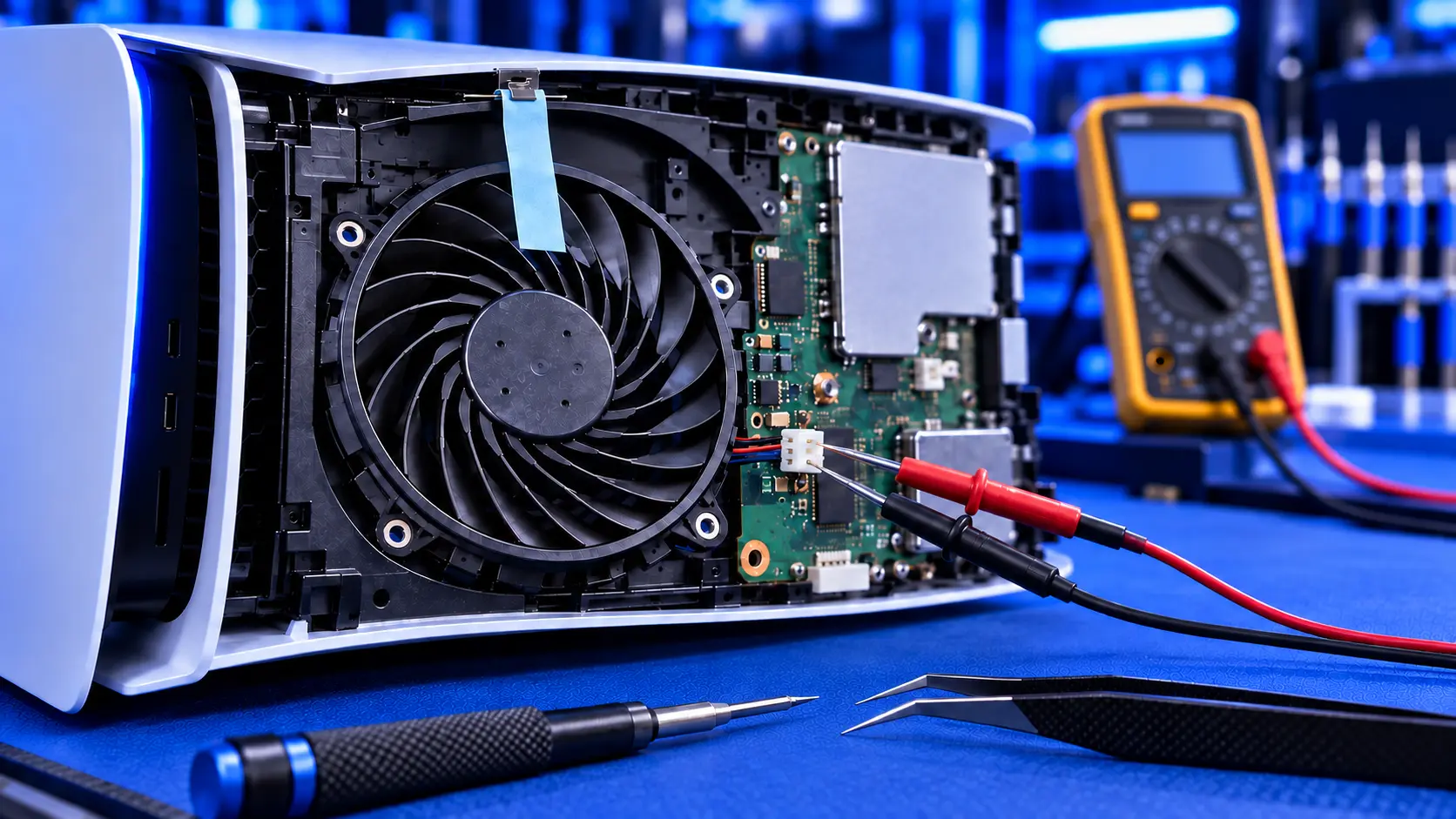
Less often, the cause is hardware: the console's storage, the board, or a power fault that cuts in as the console starts.
Before you start: protect your saves
If you have PlayStation Plus, your saves may already be backed up to the cloud. If you've backed up to a USB drive, those saves are safe too. Everything below starts with the steps that keep your data. Only the very last option erases it.
1. Power cycle it
Hold the power button until the light goes out, or unplug the console if it won't respond. Leave it unplugged for a few minutes, then plug it back in and try again. Sometimes a clean start is all it needs.
2. Start in Safe Mode
Safe Mode is the PS5's recovery menu. Turn the console fully off. Press and hold the power button, and release it after the second beep, about seven seconds later. Connect your controller with a USB cable, as a wireless controller won't work in Safe Mode, and press the PS button.
If you see the Safe Mode menu, that's good news. The console's hardware is working well enough to load it.
3. Clear the cache and rebuild the database
In Safe Mode, choose Clear Cache and Rebuild Database. It tidies up the console's system files and its index of your games, and it doesn't delete your games or saves. It can take a while. When it's finished, restart and see whether the console starts normally.
4. Update the system software from USB
If the console still won't start, choose Update System Software in Safe Mode. This reinstalls the latest system software and keeps your games and saves. If the console can connect to the internet, it can download the update itself. If not, you can install it from a USB drive:
- Use a USB drive formatted as FAT32 or exFAT.
- On a computer, create a folder called `PS5`, and inside it a folder called `UPDATE`. Use capital letters.
- Download the PS5 system software update file from PlayStation's official website, and save it in the `UPDATE` folder as `PS5UPDATE.PUP`.
- Plug the USB drive into the console, start in Safe Mode, and choose Update System Software, then update from the USB drive.
Only download the file from PlayStation's own website.
5. The last resort: a full reinstall
If nothing else works, Safe Mode has Reset PS5 (Reinstall System Software). It uses a larger file, the console reinstallation file, also from PlayStation's website, and it erases everything on the console: games, saves, settings and users. Sony's own instructions warn about this.
Only use it if you've accepted losing anything that isn't backed up. If you're not sure, stop here and get help, rather than wiping the console.
Signs it's a hardware fault
Software fixes won't help if the problem is hardware. These signs point that way:
- Safe Mode won't load at all, or the console switches off before the second beep
- The update or reinstall fails, or fails at the same point every time
- The console switches off while the light is still pulsing, every time, even in Safe Mode
- It started after a power cut or surge, and nothing above has changed anything
At that point, the likely causes are the console's power supply or board. PS5 won't turn on covers the other symptoms to look for.
What the repair involves
If you'd rather not do it yourself, or the steps above haven't worked, a PS5 no power repair with me is £119 all-in for the original PS5 or the PS5 Slim, including parts and tracked return postage. If your console only needs a system software repair, it's £49 and I refund the difference. I use the options that keep your data first, and I only use one that erases your games and saves with your permission.
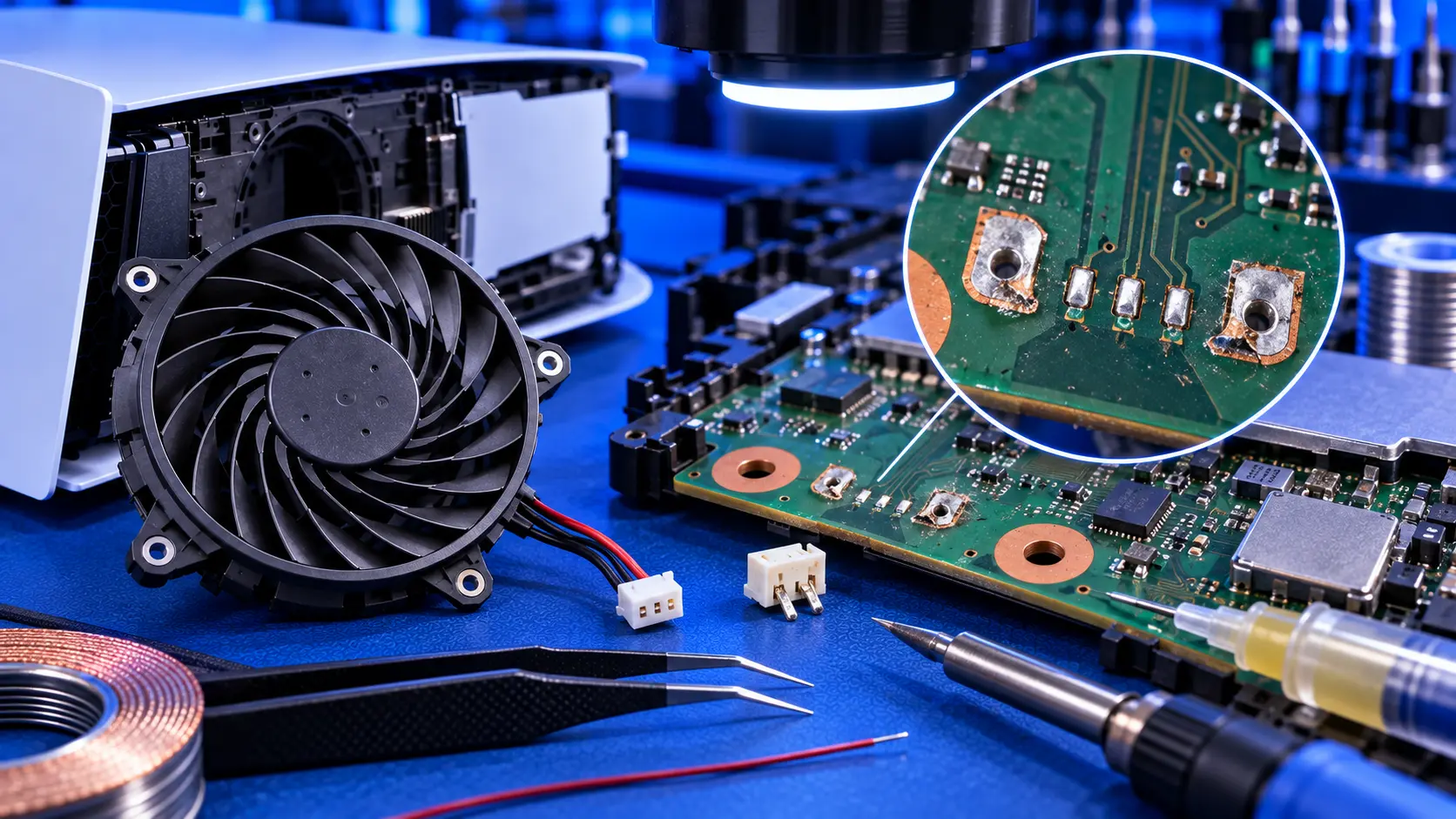
If it's a hardware fault, I find out whether it's the power supply or the board and repair it, then test the console for an hour running a demanding game before it's posted back. The work is covered by a 12-month warranty. If the processor or one of the board's main chips has failed, I can't repair it yet, so it's no fix, no fee: I refund what you paid, less return postage. I don't repair PS5 Pro power faults yet.
Common questions
Will fixing the blue light delete my games?
Not if you use the right options. Clear Cache and Rebuild Database and Update System Software both keep your games and saves. Only the Reset PS5 options erase them.
Why does my PS5 need a wired controller in Safe Mode?
Safe Mode loads before the console's wireless connection, so the controller has to be connected with a USB cable.
Can a power cut cause the blue light of death?
Yes. A power cut, especially during an update, is one of the most common causes. PS5 dead after a power cut covers what else a power cut can damage.
My recommendation
Try a power cycle, then Safe Mode: rebuild the database first, then update the system software from USB. That order keeps your data safe and fixes a lot of blue light consoles. Leave the full reinstall as a genuine last resort, and only if your saves are backed up. If Safe Mode won't load, or the update fails every time, it's hardware, and it's time for a repair.
The Repair Works is an independent UK repair service, run by me, Paul — 25 years of hands-on repair experience, working by post for customers across the whole country. Not affiliated with or endorsed by Sony.