Before you post your Samsung for repair: back up your data, factory reset it from Settings if you can, take out the SIM and any memory card, note the model number and colour, and pack the phone in a sturdy box with padding. You don't normally need to give me your passcode. If the back is lifting or bulging, don't post it: contact me first.
1. Back up your phone
A screen, battery, charging port or back repair doesn't involve your data, but no repair can rule out every risk, so back up first. Three ways:
- Google: Settings > Accounts and backup > Back up data (Google Drive). Covers apps, contacts, call history, messages and settings. Turn on Google Photos backup for your photos.
- Samsung Cloud: Settings > Accounts and backup > Back up data (Samsung Cloud). Useful for Samsung-specific settings and data.
- Smart Switch on a computer: Samsung's free Smart Switch app makes a full backup to a PC or Mac over USB, which is the most complete option.
If the screen is broken and you can't use the phone, you may still be able to back up by connecting it to a computer with Smart Switch, or with a USB mouse and a USB-C adapter.
2. Take out the SIM and any memory card
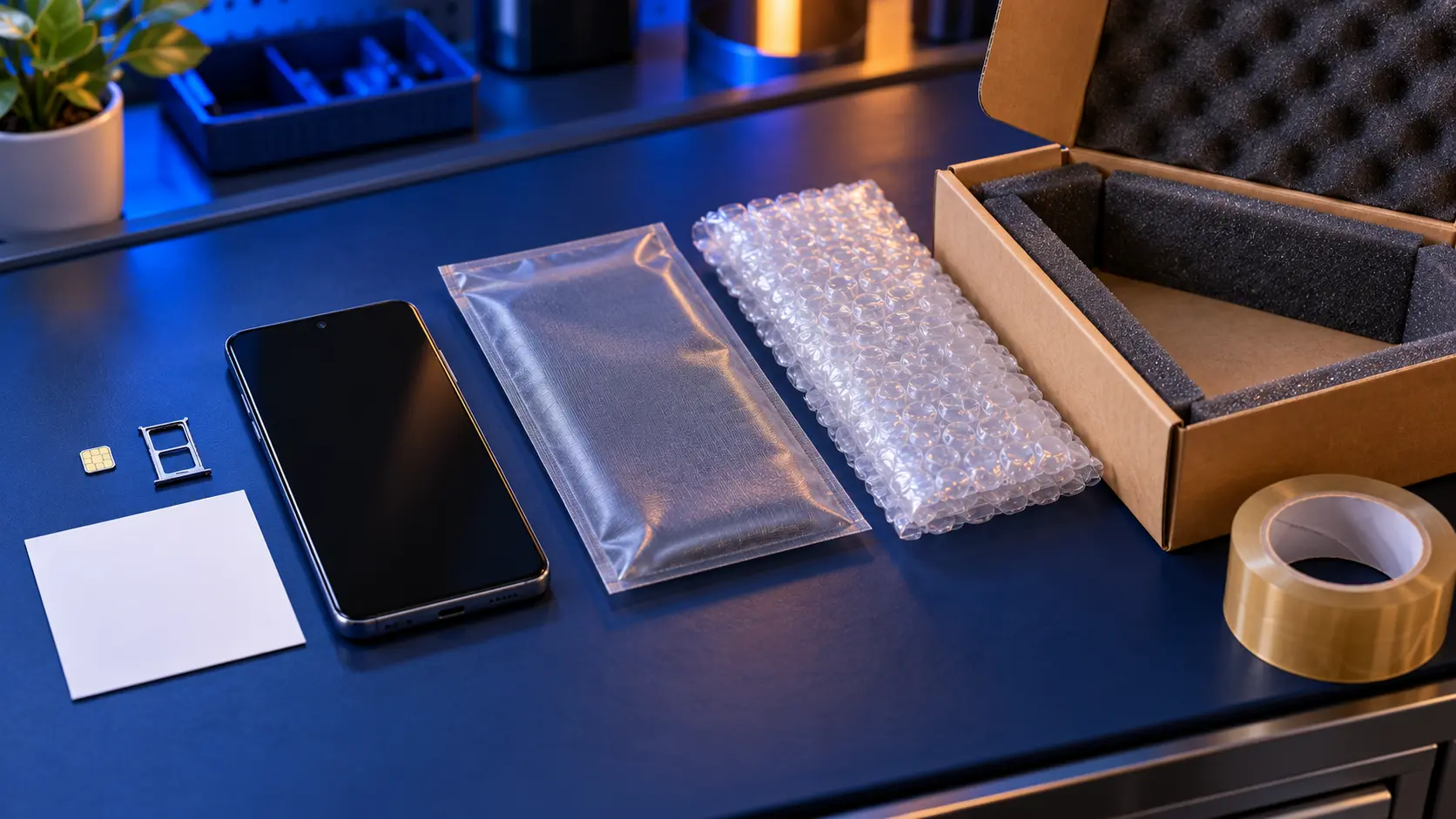
Use the SIM tool from the box, or a straightened paperclip, in the small hole on the side of the phone. Keep the SIM and memory card safe at home. I don't need them to test the phone.
3. Passcode: you don't normally need to give it
I can normally test a phone after a screen, battery, port or back repair without your passcode. If I need to check something that does need it, I'll ask you first. If you've factory reset the phone, there's no passcode at all.
4. Note the model number and colour
You'll need the model number when you book. It's in Settings > About phone and starts SM-A. For back repairs, and screens on some models, I'll also ask for the phone's colour, because genuine parts are colour-matched. This guide shows where to find the model number.
5. Factory reset it, if you can
Once your backup has finished, a factory reset means nothing personal is on the phone while it's with me. Check the backup is complete first, because a reset deletes everything on the phone.
Do it from Settings > General management > Reset > Factory data reset. Reset from Settings, not from recovery mode. A reset from Settings signs your Google and Samsung accounts out first. A recovery-mode reset leaves the phone locked to your Google account, and it can't be properly tested until that account is entered.
If you can't reset it, for example because the screen is too damaged to use, that's fine: back up if you can and post it as it is. The repair doesn't involve your data. Some newer Samsung phones also have a Maintenance mode, which hides your personal data during a repair. Many Galaxy A models don't have it. If yours does, it's in Settings > Battery and device care (or Device care) > Maintenance mode.
6. Charge it partly, then switch it off
A phone with some charge can be tested as soon as it arrives. Switch it off before packing.
7. Pack it properly
- Use a small, sturdy box, not a padded envelope.
- Wrap the phone in bubble wrap or soft packing so it can't move around.
- Don't send the charger, cable or case unless I've asked for them.
- Put a note inside with your name and booking reference.
Don't post it if the back is lifting
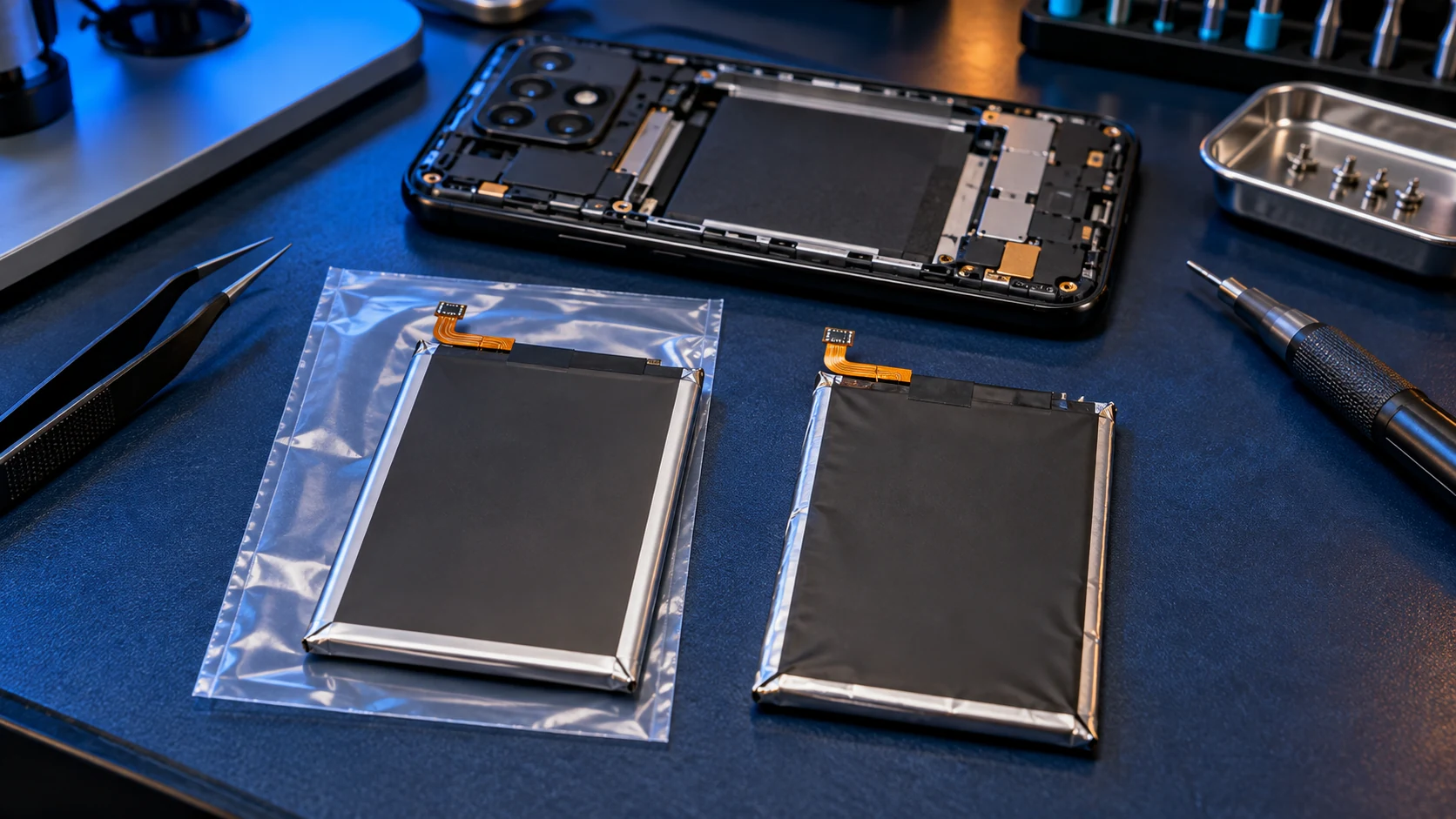
If the back is lifting away from the phone, the screen is being pushed up, or the phone is bulging, the battery may be swelling. Stop charging it and contact me before posting it.
Water damage
I don't repair water-damaged phones. If I find water damage when your phone arrives, I'll contact you before doing anything.
Ready to book?
Find your model on the Samsung Galaxy A repair page, for example the Galaxy A55 or Galaxy A16. Every repair is no fix, no fee, with a 12-month warranty, and the return postage is included.
Frequently asked questions
Will I lose my photos when I send my phone for repair?
A screen, battery, charging port or back repair doesn't touch your data, so your photos should still be there. Back up first anyway, because no repair can rule out every risk, and you'll need that backup if you factory reset before posting.
Do I need to turn off Find My Mobile?
Not separately. A factory reset from Settings signs you out of it anyway. If you can't reset the phone, you can leave it on for a screen, battery, port or back repair.
Should I factory reset my phone before a repair?
If you can, yes: back up first, then reset from Settings, not recovery mode. It means nothing personal is on the phone while I have it. If the screen is too damaged to use, post it as it is, because the repair doesn't involve your data.